• Skip to main content
  • Skip to primary sidebar
  • Skip to footer
  • HOME
  • ABOUT
    • Authors Intro
  • QUOTES
  • POETRY
    • ग़ज़ल व शायरी
  • STORIES
  • निबंध व जीवनी
  • Health Tips
  • CAREER DEVELOPMENT
  • EXAM TIPS
  • योग व ध्यान
  • Privacy Policy
  • CONTACT US
  • Disclaimer

KMSRAJ51-Always Positive Thinker

“तू ना हो निराश कभी मन से” – (KMSRAJ51, KMSRAJ, KMS)

Check out Namecheap’s best Promotions!

You are here: Home / Archives for Wi-Fi

Wi-Fi

Test Network Connection with Ping and PathPing

Kmsraj51 की कलम से…..

KMSRAJ51-CYMT

∗ Test Network Connection with Ping and Path-Ping ∗

Ping is a tool that helps to verify IP-level connectivity; PathPing is a tool that detects packet loss over multiple-hop trips. When troubleshooting, the ping command is used to send an ICMP Echo Request to a target host name or IP address. Use Ping whenever you want to verify that a host computer can send IP packets to a destination host. You can also use the Ping tool to isolate network hardware problems and incompatible configurations.

Note ≈>

If you call ipconfig /all and receive a response, there is no need to ping the loopback address and your own IP address — Ipconfig has already done so in order to generate the report.

It is best to verify that a route exists between the local computer and a network host by first using ping and the IP address of the network host to which you want to connect. The command syntax is:

ping < IP address >

Perform the following steps when using Ping:

  1. Ping the loopback address to verify that TCP/IP is installed and configured correctly on the local computer.ping 127.0.0.1

    If the loopback step fails, the IP stack is not responding. This might be because the TCP drivers are corrupted, the network adapter might not be working, or another service is interfering with IP.

  2. Ping the IP address of the local computer to verify that it was added to the network correctly. Note that if the routing table is correct, this simply forwards the packet to the loopback address of 127.0.0.1.ping < IP address of local host >
  3. Ping the IP address of the default gateway to verify that the default gateway is functioning and that you can communicate with a local host on the local network.ping < IP address of default gateway >
  4. Ping the IP address of a remote host to verify that you can communicate through a router.ping < IP address of remote host >
  5. Ping the host name of a remote host to verify that you can resolve a remote host name.ping < Host name of remote host >
  6. Run a PathPing analysis to a remote host to verify that the routers on the way to the destination are operating correctly.pathping < IP address of remote host >


If your local address is returned as 169.254.y.z, you have been assigned an IP address by the Automatic Private IP Addressing (APIPA) feature of Windows 2000. This means that the local DHCP server is not configured properly or cannot be reached from your computer, and an IP address has been assigned automatically with a subnet mask of 255.255.0.0. Enable or correct the DHCP server, restart the local computer, and see if the networking problem persists.

If your local address is returned as 0.0.0.0, the Microsoft MediaSense software override started because the network adapter detects that it is not connected to a network. To correct this problem, turn off MediaSense by making sure that the network adapter and network cable are connected to a hub. If the connection is solid, reinstall the network adapter’s drivers or a new network adapter.

Ping uses host name resolution to resolve a computer name to an IP address, so if pinging by address succeeds, but fails by name, then the problem lies in host name resolution, not network connectivity. For more information about troubleshooting host name resolution, see “Unable to Reach a Host or NetBIOS Name” earlier in this chapter.

If you cannot use Ping successfully at any point, check the following:

  • The local computer’s IP address is valid and appears correctly in the IP Address tab of the Internet Protocol ( TCP/IP) Properties dialog box or when using the Ipconfig tool.
  • A default gateway is configured and the link between the host and the default gateway is operational. For troubleshooting purposes, make sure that only one default gateway is configured. While it is possible to configure more than one default gateway, gateways beyond the first are only used if the IP stack determines that the original gateway is not functioning. Since the point of troubleshooting is to determine the status of the first configured gateway, delete all others to simplify your troubleshooting.

♥ Important ♥

If the remote system being pinged is across a high-delay link such as a satellite link, responses might take longer to be returned. The -w (wait) switch can be used to specify a longer time-out. The following example shows a set of two pings, each 1450 bytes in size, that wait two seconds (2000 milliseconds) for a response before timing out.

C:\>ping -w 2000 -n 2 -l 1450 172.16.48.10

Pinging 172.16.48.10 with 1450 bytes of data:

Reply from 172.16.48.10: bytes=1450 time=1542ms TTL=32

Reply from 172.16.48.10: bytes=1450 time=1787ms TTL=32

Ping statistics for 172.16.48.10:

Packets: Sent = 2, Received = 2, Lost = 0 (0% loss),

Approximate round trip times in milli-seconds:

Minimum = 0ms, Maximum = 10ms, Average = 1664ms

♥ Clear ARP Cache ♥

If you can ping both the loopback address and your own IP address, the next step is to clear out the ARP cache and reload it. This can be done by using the Arp utility, first to display the cache entries with arp -a or arp -g . Delete the entries with arp -d < IP address >.

♥ Verify Default Gateway ♥

Next, look at the default gateway. The gateway address must be on the same network as the local host; if not, no messages from the host computer can be forwarded to any location outside the local network. Next, check to make sure that the default gateway address is correct as entered. Finally, check to see that the default gateway is a router, not just a host, and that it is enabled to forward IP datagrams.

♥ Ping Remote Host ♥

If the default gateway responds correctly, ping a remote host to ensure that network-to-network communications are operating as expected. If this fails, use Tracert to examine the path to the destination. For IP routers that are Windows NT or Windows 2000 computers, use the route utility or the Routing and Remote Access administrative tool on those computers to examine the IP routing table. For IP routers that are not Windows NT or Windows 2000 computers, use the appropriate utility or facility to examine the IP routing table.

Four error messages are commonly returned by Ping during troubleshooting. They are:

♥ TTL Expired in Transit ♥

The number of hops required to reach the destination exceeds the TTL set by the sending host to forward the packets. The default TTL value for ICMP Echo Requests sent by Ping is 32. In some cases, this is not enough to travel the required number of links to a destination. You can increase the TTL using the -i switch, up to a maximum of 255 links.

If increasing the TTL value fails to resolve the problem, the packets are being forwarded in a routing loop, a circular path among routers. Use Tracert to track down the source of the routing loop, which appears as a repeated series of the same IP addresses in the Tracert report. Next, make an appropriate change to the routing tables, or inform the administrator of a remote router of the problem.

♥ Destination Host Unreachable ♥

This message indicates one of two problems: either the local system has no route to the desired destination, or a remote router reports that it has no route to the destination. The two problems can be distinguished by the form of the message. If the message is simply “Destination Host Unreachable,” then there is no route from the local system, and the packets to be sent were never put on the wire. Use the Route utility to check the local routing table.

If the message is “Reply From < IP address >: Destination Host Unreachable,” then the routing problem occurred at a remote router, whose address is indicated by the “< IP address >” field. Use the appropriate utility or facility to check the IP routing table of the router assigned the IP address of < IP address >.

If you pinged using an IP address, retry it with a host name to ensure that the IP address you tried is correct.

♥ Request Timed Out ♥

This message indicates that no Echo Reply messages were received within the default time of 1 second. This can be due to many different causes; the most common include network congestion, failure of the ARP request, packet filtering, routing error, or a silent discard. Most often, it means that a route back to the sending host has failed. This might be because the destination host does not know the route back to the sending host, or one of the intermediary routers does not know the route back, or even that the destination host’s default gateway does not know the route back. Check the routing table of the destination host to see whether it has a route to the sending host before checking tables at the routers.

If the remote routing tables are correct and contain a valid route back to the sending host, to see if the ARP cache lacks the proper address, use the arp -a command to print the contents of the ARP cache. Also, check the subnet mask to be sure that a remote address has not been interpreted as local.

Next, use Tracert to follow the route to the destination. While Tracert does not record the address of the last hop or the path that the packet followed on the return path, it might show that the packet made it to the destination. If this is the case, the problem is probably a routing issue on the return path. If the trace doesn’t quite reach the destination, it might be because the target host is protected by a firewall. When a firewall protects the destination, ICMP packet filtering prevents the ping packets—or any other ICMP messages—from crossing the firewall and reaching their destination.

To check for network congestion, simply increase the allowed latency by setting a higher wait time with the -w switch, such as 5000 milliseconds. Try to ping the destination again. If the request still times out, congestion is not the problem; an address resolution problem or routing error is a more likely issue.

♥ Unknown Host ♥

This error message indicates that the requested host name cannot be resolved to its IP address; check that the name is entered correctly and that the DNS servers can resolve it.

Source: https://technet.microsoft.com/

Please Share your comment`s.

आपका सबका प्रिय दोस्त,

Krishna Mohan Singh(KMS)
Head Editor, Founder & CEO
of,,  http://kmsraj51.com/

———– @ Best of Luck @ ———–

Note::-

यदि आपके पास हिंदी या अंग्रेजी में कोई Article, Inspirational Story, Poetry या जानकारी है जो आप हमारे साथ share करना चाहते हैं तो कृपया उसे अपनी फोटो के साथ E-mail करें. हमारी Id है: kmsraj51@hotmail.com. पसंद आने पर हम उसे आपके नाम और फोटो के साथ यहाँ PUBLISH करेंगे. Thanks!!

Also mail me ID: cymtkmsraj51@hotmail.com (Fast reply)

cymt-kmsraj51

– कुछ उपयोगी पोस्ट सफल जीवन से संबंधित –

* विचारों की शक्ति-(The Power of Thoughts)

* KMSRAJ51 के महान विचार हिंदी में।

* खुश रहने के तरीके हिन्दी में।

* अपनी खुद की किस्मत बनाओ।

* सकारात्‍मक सोच है जीवन का सक्‍सेस मंत्र 

* चांदी की छड़ी।

CYMT-100-10 WORDS KMS

निश्चय ही आप विजयी होंगे, यदि आप अपनी दुर्बलता (Weakness) को अपनी ताकत में तब्दील करना सीख लें।

“अगर अपने कार्य से आप स्वयं संतुष्ट हैं, ताे फिर अन्य लोग क्या कहते हैं उसकी परवाह ना करें।”

 ~KMSRAJ51

“अपने लक्ष्य को इतना महान बना दो, की व्यर्थ के लीये समय ही ना बचे” -Kmsraj51

 ~KMSRAJ51


_______Copyright © 2015 kmsraj51.com All Rights Reserved.________


Filed Under: 2015-Kmsraj51 की कलम से….., Test Network Connection, Wi-Fi, Windows, Windows 7, WIRELESS TECHNOLOGIES Tagged With: Find Network Problem, how to check ping is properly serve, How to Clear ARP Cache, How to Ping Remote Host, How to resolve Destination Host Unreachable, How to Resolve Internet Connection, How to resolve Request Timed Out Problem, How To Troubleshoot Internet Connection Problems, http://kmsraj51.com/, http://mcitpkmsraj51.blogspot.com/, http://mcitpkmsraj51.blogspot.in/, Internet Protocol ( TCP/IP) Properties, Kmsraj51, Ping and PathPing, Resolve Test Network Connection with Ping and PathPing, Using Ping to Find Network Problems

Windows XP – Support is ending soon

kmsraj51 की कलम से …..
nature_KMSRAJ51

Support is ending soon
On April 8, 2014, support and updates for Windows XP will no longer be available. Don’t let your PC go unprotected.


What is Windows XP end of support?
=================================
Microsoft has provided support for Windows XP for the past 12 years. But now the time has come for us, along with our hardware and software partners, to invest our resources toward supporting more recent technologies so that we can continue to deliver great new experiences.

As a result, after April 8, 2014, technical assistance for Windows XP will no longer be available, including automatic updates that help protect your PC. Microsoft will also stop providing Microsoft Security Essentials for download on Windows XP on this date. (If you already have Microsoft Security Essentials installed, you will continue to receive antimalware signature updates for a limited time, but this does not mean that your PC will be secure because Microsoft will no longer be providing security updates to help protect your PC.)

If you continue to use Windows XP after support ends, your computer will still work but it might become more vulnerable to security risks and viruses. Also, as more software and hardware manufacturers continue to optimize for more recent versions of Windows, you can expect to encounter greater numbers of apps and devices that do not work with Windows XP.

Desktop

What does it mean if my version of Windows is no longer supported?
==================================================================
An unsupported version of Windows will no longer receive software updates from Windows Update. These include security updates that can help protect your PC from harmful viruses, spyware, and other malicious software, which can steal your personal information. Windows Update also installs the latest software updates to improve the reliability of Windows—new drivers for your hardware and more.

Support end dates

Here are the dates when support will end for PCs running Windows XP and Windows Vista without the latest service packs:

Support for Windows XP is ending on April 8, 2014. For more information, see Support is ending for Windows XP.

Support for Windows Vista Service Pack 1 (SP1) ended on July 12, 2011. To continue support, make sure you’ve installed Windows Vista Service Pack 2 (SP2).

Support for Windows Vista without any service packs ended on April 13, 2010. To continue support, make sure you’ve installed Windows Vista SP2.

Support for Windows XP SP2 ended on July 13, 2010. To continue support, make sure you’ve installed Windows XP Service Pack 3 (SP3).

How do I stay protected?
To stay protected after support ends, you have two options:

Upgrade your current PC
Very few older computers will be able to run Windows 8.1, which is the latest version of Windows. We recommend that you download and run the Windows Upgrade Assistant to check if your PC meets the system requirements for Windows 8.1 and then follow the steps in the tutorial to upgrade if your PC is able. For more detailed information, read the FAQ…..
=> http://windows.microsoft.com/en-us/windows-8/upgrade-to-windows-8

Get a new PC

If your current PC can’t run Windows 8.1, it might be time to consider shopping for a new one. Be sure to explore our great selection of new PCs. They’re more powerful, lightweight, and stylish than ever before—and with an average price that’s considerably less expensive than the average PC was 10 years ago.

Find Your Perfect PC

http://www.microsoft.com/windows/en-us/xp/pcs-and-offers.aspx?ocid=XPEOS_O_WOL_NULL_NULL

How do I move all my Windows XP stuff to a new PC?

You can move your Windows XP stuff with Laplink, a free data migration solution that will walk you through all the steps to getting your files, setings, and user profiles from your Windows XP PC to your new Windows laptop, desktop, or tablet. (Note that you will need your Windows XP PC to migrate your data, and you can only migrate to a PC running Windows 7, Windows 8, or Windows 8.1.)

What do I get with Windows 8.1?

Windows 8.1 makes it easy to do all the things you’re used to doing with Windows XP while opening up a whole new world of possibilities for you to explore and enjoy.

8 win-kmsraj51

windows-logo_large_verge_medium_landscape-kmsraj51

Note::-
यदि आपके पास Hindi “OR” English में कोई article, inspirational story, Poetry या जानकारी है जो आप हमारे साथ share करना चाहते हैं तो कृपया उसे अपनी फोटो के साथ E-mail करें. हमारी Id है::- kmsraj51@yahoo.in . पसंद आने पर हम उसे आपके नाम और फोटो के साथ यहाँ PUBLISH करेंगे. Thanks!!

HD - KMSRAJ51

95 kmsraj51 readers

baby-TU NA HO NIRASH KABHI MAN SE

=========================================================
——————– —– http://kmsraj51.wordpress.com/ —– ——————
=======================================================

Filed Under: 2014 - KMSRAJ51 KI PEN SE ....., INTERNET & TECHNOLOGY, IT-Information Technology, MS-WINDOWS, Windows 7 Tagged With: kms, Kmsraj51, MS-Windows, Win XP Support, Windows, XP, XP - Support is end

Optimize PC: Fix Network Connection Problems in Windows 7

kmsraj51 की कलम से …..
nature_KMSRAJ51

Some portable computers have a wireless network adapter wherein the user can view a list of available wireless networks and then connect to one of that network. This network will appear if the computer has a wireless network adapter installed, if the adapter is turned on and the wireless access point is in range.
wireless-connection-problem

To view and connect to wireless networks in Windows 7:

Click the wireless network icon in the notification area of the taskbar.
Choose the desired network to connect to in the list of wireless networks and t hen click Connect.
Type the security key if connecting to a secure network and then click OK.

It is important to have a PC that works at its best to ensure tasks accomplishment and other errands everyday. However, if the PC is not functioning well, this will trigger a problem to the user. The user must make it a habit to check the computer daily since it can not be avoided that errors may arise anytime, whether caused by internal functions of the computer or from the outside environment. If a problem in the wireless network connection arises, just do the following steps to cure it.

EXAMINE THE HARDWARE

Usually, improperly connected hardware is the major cause of network connection problems. Check the network adapter switch, reset modem and check for problems with the network adapter. If a laptop is being used, se to it that the network adapter switch is turned on. There are numbers of laptop that has a physical switch somewhere on the front, side or top of the laptop that turns network adapter on or off. Usually, the laptop has an indicator light that tells whether the wireless network adapter is enabled or not. Check also the network adapter in the Device Manager and verify the status of the network adapter by doing the following steps:

=> Hit the Start button and type “device manager” in the search box.
=> Choose Device Manager in the resulting list. If the computer requires for an administrator password or confirmation, supply the necessary information to proceed with the process.
=> Double-click Network Adapter then right-click the network adapter.
=> Select properties and then under Device status, check if the device is working properly.
=> Select Enable Device to enable network adapter if it is disabled.

UTILIZE THE AUTOMATED TROUBLESHOOTER

To start with, use the Network troubleshooter and then test the internet connection. To open the Network troubleshooter, simply right-click the wireless network connection icon in the notification area of the taskbar then selects Troubleshoot problems.

UPDATE DRIVERS
Network adapter driver is an application used by the computer to communicate with the wireless network adapter. Network adapter drivers which are corrupted or obsolete prevent network connection to fail.

“Just execute these steps properly and the problem in wireless network connection will surely be resolved.”

tumblr_mw-kmsraj51

Note::-
यदि आपके पास Hindi “OR” English में कोई article, inspirational story, Poetry या जानकारी है जो आप हमारे साथ share करना चाहते हैं तो कृपया उसे अपनी फोटो के साथ E-mail करें. हमारी Id है::- kmsraj51@yahoo.in . पसंद आने पर हम उसे आपके नाम और फोटो के साथ यहाँ PUBLISH करेंगे. Thanks!!

HD - KMSRAJ51

————————————————————————————————
——————– —– http://kmsraj51.wordpress.com/ —– ——————
————————————————————————————————

Filed Under: 2014 - KMSRAJ51 KI PEN SE ....., INTERNET & TECHNOLOGY, IT-Information Technology, Wi-Fi, Windows 7 Tagged With: Fix Network Connection Problems in Windows 7, kms, Kmsraj51, Network Connection Problems, Resolve Fix Network Connection Problems, Wireless Connectivity Problem

Check Who is Accessing Your Wireless Network

kmsraj51 की कलम से …..
nature_KMSRAJ51

Have you subscribed for high-speed broadband internet connection?
Do you use wireless network/wi-fi to connect to the internet?
Are you still unhappy about not getting the speed you were promised?

If the answers to the above questions are YES, then you might need to check your Wireless router’s settings once again. There is a possibility of someone sharing stealing your wireless connection illegally.

Having a wifi router at home is very common these days. People prefer to stay connected to the internet via their desktop, laptop, mobile phone or even their multimedia gadget like iPod Touch. That is pretty cool, but the issue is when you forget (or ignore) to set a password for your wireless connection. That would mean, anyone nearby, within the router connectivity area can easily connect to your network and get free access to the internet!!

wifi - kmsraj51

How to Check who is Accessing your Wireless network?
—————————————————-
In order to check who is illegally accessing your internet connection, you can download and install a small tool – Zamzom Wireless Network Tool which can easily track who is using your network.

“With Zamzom wireless network tool you can see ALL the users that use your wireless network. Zamzom Wireless network tool only use 10 second to give you the result.”

Features of Zamzom wireless network tool:
—————————————–
-=> Inform you of who is using your wireless network
-=> Inform you of all the names
-=> Inform you of all the IP addresses
-=> Inform you of the Mac addresses
-=> Scan your wireless network in only 10 seconds
-=> Detect computers even if you don’t see them in program neighborhood
-=> Detect computers even if you can’t ping them

zamzom-kmsraj51

The tool comes in 2 versions – Basic and Pro. The basic version is free to use and the Pro version costs $12.5! The only difference being, in Pro version you will be able to see the computer name in addition to the IP address of the device being used.

It works on Windows 2000, Windows XP, Windows 2003/2008 Server, Windows Vista, and Windows 7. You can check out this video demo to get a better understanding of what this tool is capable of…..

—————————————————
—————————————————
Download Zamzom Wireless Network Tool

http://www.zamzom.com/index-3.html

—————————————————
—————————————————

keyser-tux-wifi-logo-kmsraj51

Note::-
यदि आपके पास Hindi “OR” English में कोई article, inspirational story, Poetry या जानकारी है जो आप हमारे साथ share करना चाहते हैं तो कृपया उसे अपनी फोटो के साथ E-mail करें. हमारी Id है::- kmsraj51@yahoo.in . पसंद आने पर हम उसे आपके नाम और फोटो के साथ यहाँ PUBLISH करेंगे. Thanks!!

———————————————————————————-
——————– —– http://kmsraj51.wordpress.com/ —– ——————
———————————————————————————-

Filed Under: 2014 - KMSRAJ51 KI PEN SE ....., INTERNET & TECHNOLOGY, IT-Information Technology, Wi-Fi Tagged With: Access Wireless Network, Accessing Your Wireless Network, kms, Kmsraj51, Wi-Fi / Wireless Network, Wireless, Wireless Network Technology, wireless network tool, Zamzom wireless network tool

Extend the Wi-Fi Range with These 9 Wi-Fi Enhancers

kmsraj51 की कलम से …..
nature_KMSRAJ51

As our homes and cities are more and more connected to the Internet and the Wi-Fi coverage increases, we enjoy the benefits of the web wherever we are. The problem today is that even the best routers can’t cover a big enough area so that we can stay connected to the Internet continuously. Also, the battery restrictions of our smartphones don’t let us stay for a longer period to a WiFi connection (as you know, the Wi-Fi antenna consumes a massive amount of battery power).

Although we can’t do anything for the battery of our smartphones for the time being (we did see some innovation with the wireless charger of the Samsung Galaxy S III smartphone), we can enjoy a better signal from our Wi-Fi routers with a few cool gadgets that extend our signal to a wider area. Also, do check out our guide to improve and extend your Wi-Fi coverage.

wifi-webcast-kmsraj51

WHAT ARE WIFI EXTENDERS?

What are WiFi extenders or WiFi enhancers? These electronic components are signal boosters for our routers, that multiply the signal sent from the routing device to a wider area, both unidirectional (in one direction) or multidirectional (in multiple directions). WiFi enhancers can be mounted on the router’s antenna and boost the signal directly from the source, or they can be entirely separate devices that boost the signal when it gets low, creating a new hot spot around them.

If a usual WiFi router has a coverage area of about approximately 50 meters, these WiFi extenders can double or even triple the WiFi coverage of your router.

HOW EXPENSIVE ARE THESE WIFI EXTENDERS?

You might expect these devices to have staggering prices, much more over the range of normal WiFi routers. But the truth is that they come in almost the same price range, going from anything around $20 and up to $400 or more. This makes them widely available for anyone who wants a boost of their Wi-Fi signal, to enjoy the web from the backyard or for those who share an Internet connection at a greater distance.

9 Best Wi-Fi Extenders

9. BOUNCE WIFI ENHANCER
f00b_bounce_wifi_enhancer

This strangely shaped Wi-Fi Enhancer is absolutely great! It doesn’t occupy much space because it’s mounted directly on the antenna of your wireless router and it amplifies and directs the signal in one direction. This gadget is great if your router does not cover a room or a part of your house, just mount in on the antenna of your router, point it in which direction you want and there you are. It’s simple to install, you don’t need an engineering degree to set it up and you can have it up and running in a few minutes! A great piece of tech, and for around $25, one of the best deals you can get. The bad part is that it only points to one direction.

8. ENGENIUS ERB9250 WIFI BOOSTER

ERB9250-11N-300MB-11N-Range-Extender-Removable-Antenna-kmsraj51
In the budget side of the top comes the EnGenius ERB9250 Wi-Fi Booster, which is only $45. This Wi-Fi Enhancer features easily removable antennas, excellent for later upgrades to your network, when you need a bigger coverage and its small size and neutral looks make it great for a home wireless network. Also, the device can be easily set up, so you can have it up and running in a few minutes.

7. LUXUL PW100-24-100 WIFI BOOSTER

Luxul-Pro-WAV-100-Wireless-Range-Extender-kmsraj51
The biggest gun in the house, the Luxul PW100-24-100 Wi-Fi Booster has the best coverage (almost the size of a big cyber cafe or store) and it’s designed to be the workhorse for a crowded networks. This Wi-Fi Enhancer is ceiling mounted, so you won’t even see it and it does the job fantastic. The only bad part about it is that it’s harder to find and it costs considerably more than the rest (in the range of $400-$500). Apart from this, for a store or a public indoor place, this device is the way to go!

6. LINKSYS WRE54G WIFI BOOSTER

Cisco-Linksys-Wireless-G-Range-Expander-WRE54G-kmsraj51
Perfect for indoor use, this Wi-Fi Extender can amplify your signal and make it reach all the corners of your house or office, even through thick walls. Also, for multi-story houses, the device can greatly improve your Wi-Fi coverage and give you full strength signal where you previously had none. The size of the device is in the mid-range and it only has one antenna, but trust me when I say: it does the job great!

5. BELKIN DUAL-BAND F9K1106

Belkin-Dual-Band-F9K1106-300x300-kmsraj51
Belkin has brought us some pretty awesome devices over the years, and with this Wi-Fi enhancer they haven’t disappointed a bit. Giving users an additional 100 meters of Wi-Fi signal and with 4 ethernet ports, this device lets you manage your home or office network very well. Also, its awesome design lets you position it out in the open without the fear that it will ruin the look of your house.

4. TRENDNET TEW-637AP

Trendnet-300Mbps-Wireless-Easy-N-Upgrader-kmsraj51
This little device has a pretty big punch. It can amplify your signal to almost 100 meters indoor and a staggering 300 meters outdoors, all this with less power consumption than any other Wi-Fi enhancer. It features a Ethernet port where you can connect wired devices to your network and two Wi-Fi antennas and its small size makes it easy to conceal. Although it does have only one Ethernet port, so it limits the number of wired connections, its huge coverage area makes it great for wireless devices, both indoor and outdoor.

3. NETGEAR WN3000RP

Netgear-Universal-WN3000RP-Wi-Fi-Range-Extender-kmsraj51
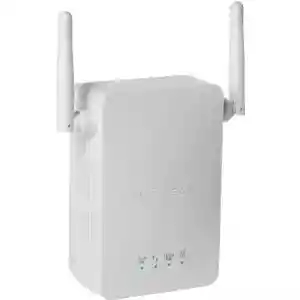
Although less powerful than the other Wi-Fi enhancers featured in this top, and with only one ethernet port, this device is much more smaller and it fits in one wall socket, so you don’t need a power cord to run it. This is the way to go if you don’t want any wires in your home and if you prefer small, less noticeable devices. It’s great for a home network, amplifying your Wi-Fi signal with another 30 meters, great for a home or office network and not wide enough for other people to piggyback your connection.

2. ZYXEL WAP3205

zyxel-kmsraj51
Offering a hefty 100 meters of extra WiFi signal, the ZyXEL WAP3205 is a great upgrade you can make to your existing home network. Also, it has another two Ethernet ports that you can use to connect your wired devices into the wireless network and with two antennas, one for receiving the Wi-Fi signal and one for bouncing it along. The only thing I could find wrong with this Wi-Fi enhancer is that it does not have a ON/OFF switch, so for turning it off or for resetting the unit, you need to unplug it.

1. HAWKING HW2R1

Hawking-HW2R1-kmsraj51
A stunning looking device with lots of power under it, the Hawking HW2R1 is one of the best Wi-Fi enhancers out there. Users of this device have at their disposal three antennas to bounce their Wi-Fi signal at lengths they never thought they could. The first antenna of the Wi-Fi Enhancer picks up the Wi-Fi signal coming from your router and the other two bounce it back out, giving you a Wi-Fi signal that goes up to 150 meters. Also, the device comes with five Ethernet ports, so you can connect an additional five wired devices to your network with ease.

HD - KMSRAJ51

Note::-
यदि आपके पास Hindi “OR” English में कोई article, inspirational story, Poetry या जानकारी है जो आप हमारे साथ share करना चाहते हैं तो कृपया उसे अपनी फोटो के साथ E-mail करें. हमारी Id है::- kmsraj51@yahoo.in . पसंद आने पर हम उसे आपके नाम और फोटो के साथ यहाँ PUBLISH करेंगे. Thanks!!

wifi-802-11-kmsraj51
wi-fi-all-kmsraj51

HD - KMSRAJ51

———————————————————————————-
——————– —– http://kmsraj51.wordpress.com/ —– ——————
———————————————————————————-

keyser-tux-wifi-logo-kmsraj51


95 kmsraj51 readers
baby-TU NA HO NIRASH KABHI MAN SE

——————– —– http://kmsraj51.wordpress.com/ —– ——————

Filed Under: 2014 - KMSRAJ51 KI PEN SE ....., INTERNET & TECHNOLOGY, IT-Information Technology, Wi-Fi Tagged With: Cover Wi-Fi Range, Enhance Wi-Fi Range, Extend Wi-Fi Range, kms, Kmsraj51, Wi-Fi Enhancers, Wi-Fi Range

5 Ways to Speed Up Your Wireless Network

kmsraj51 की कलम से …..
nature_KMSRAJ51

अपने वायरलेस नेटवर्क में तेजी लाने के लिए 5 तरीके
wifi - kmsraj51

So, you’ve just spent a hefty chunk of your paycheck on a new router, and you gradually begin to realize that its speed isn’t exactly up to par. Luckily, this normally doesn’t have anything to do with the quality of the router. The problem most likely lies with the way it is configured and/or positioned. A weak wifi signal or slow transfer speed can be troublesome, but you’ll be happy to know that there are some simple things that you can do to remedy this issue.

wireless-signal-KMSRAJ51

1. Consider its position – Most people are under the impression that it doesn’t matter where in the house the router it placed because they think the signal will be great regardless of its position. This is actually very far from the truth. The truth is that knowing where exactly to place your router can be the difference between a strong signal and a weak signal. Remember, the weaker the signal is, the slower the connection will be. Place your router in a strategic place such as the center. If your house has three floors, place it in near the center on the second floor. You’ll also need to make sure that there aren’t any obstructions such as metal objects or brick walls. Obstructions such as these can really cut a wifi signal down to size.

2. Purchase a repeater – You may have found that moving your wireless router hasn’t exactly solved the problem. If this is the case, a repeater is very likely to remedy the issue. A repeater is simply a device that is placed within the wireless network’s range, and it simply broadcasts the wireless signal even further. These are particularly helpful if you’ve got an exceptionally long or narrow home, or if you’ve got a multiple story home.

WiFi - House - kmsraj51

3. Try changing the router’s channel – The truth is that many electronic household objects operate on a radio frequency just as your router does, and if they’re operating on the same frequency, things could get hairy. You could ultimately troubleshoot the issue by changing your router’s channel. This can be done in your within your router’s settings, and it’s simply for almost anybody to do it. However, there are a few programs on the market that will do this for you in the case that you don’t feel comfortable messing around in the settings, and one of them is called “NetStumbler.”

4. Make sure your problem isn’t the wireless adapter – It’s always recommended that you don’t always narrow the problem down to your router. If you’ve been using the same wireless adapter to connect to your network all along and you’re still experiencing trouble, you may want to take a closer look at your wireless adapter. To check if the adapter is the problem, bring it to a friend’s house or public place that has free wifi. If your wireless adapter has trouble with the signal in other places too, it may very well be your culprit. Purchase another wireless adapter to rule all possibilities out other than your router.

5. Try updating your router’s firmware as well as relevant drivers – The truth is that hardware developers aren’t perfect, and not all devices are going to work flawlessly. The problem you’re experiencing may be a result of outdated firmware or drivers, so go ahead and get the latest of each for your router and adapters. The router’s firmware can typically be updated through the gateway settings, and adapter drivers can usually be found on the manufacturer’s website.

wi-fi_networking_technology-kmsraj51

Note::-
यदि आपके पास Hindi “OR” English में कोई article, inspirational story, Poetry या जानकारी है जो आप हमारे साथ share करना चाहते हैं तो कृपया उसे अपनी फोटो के साथ E-mail करें. हमारी Id है::- kmsraj51@yahoo.in . पसंद आने पर हम उसे आपके नाम और फोटो के साथ यहाँ PUBLISH करेंगे. Thanks!!

HD - KMSRAJ51

——————– —– http://kmsraj51.wordpress.com/ —– ——————

Filed Under: 2014 - KMSRAJ51 KI PEN SE ....., INTERNET & TECHNOLOGY, IT-Information Technology, Wi-Fi Tagged With: Boost-up Wireless Network Speed, kms, Kmsraj51, Speed Up Your Wireless Network, Wireless Network, Wireless Networking, Wireless Networking in Hindi

Primary Sidebar

Recent Posts

  • निरर्थक रील्स की आरी – गुमराह होती नारी।
  • बात वक्त की।
  • तिरंगा का करें सम्मान।
  • एक सफर।
  • बाल विवाह – एक अभिशाप।
  • क्या बदलाव लायेगा नया साल।
  • है तो नववर्ष।
  • मोह।
  • अपना धर्म सबसे उत्तम।
  • ठंडी व्यार।
  • रिश्तों को निभाना सीखो।
  • तंत्र, मंत्र और तत्व ज्ञान में अंतर।
  • मित्र।
  • आखिर क्यों।
  • समय।
  • काले बादल।
  • सुबह का संदेश।

KMSRAJ51: Motivational Speaker

https://www.youtube.com/watch?v=0XYeLGPGmII

BEST OF KMSRAJ51.COM

निरर्थक रील्स की आरी – गुमराह होती नारी।

बात वक्त की।

तिरंगा का करें सम्मान।

एक सफर।

बाल विवाह – एक अभिशाप।

क्या बदलाव लायेगा नया साल।

है तो नववर्ष।

मोह।

अपना धर्म सबसे उत्तम।

ठंडी व्यार।

रिश्तों को निभाना सीखो।

Footer

Protected by Copyscape

KMSRAJ51

DMCA.com Protection Status

Disclaimer

Copyright © 2013 - 2026 KMSRAJ51.COM - All Rights Reserved. KMSRAJ51® is a registered trademark.